AI Fashion Workflow: Consistent Character & Outfit Generation
Revolutionize your AI fashion photography with Grid Canvas. This guide demonstrates a powerful grid-based workflow to create consistent models, generate multiple poses, and iterate on outfits instantly—solving the biggest challenge in virtual fashion design: consistency.
The Challenge: Consistency in AI Fashion
For fashion brands and designers, the holy grail of AI generation is consistency. You don't just need a pretty image; you need:
- The same character across different shots
- Precise control over poses and angles
- Consistent outfits seen from multiple views
- A scalable workflow that doesn't require thousands of random generations
Enter Grid Canvas—Banana Designer's new grid-based workspace that gives you granular control over every step of the creative process.
The Workflow: From Concept to Full Collection
We will walk through a complete AI fashion workflow consisting of 5 steps to turn a single character concept into a versatile fashion portfolio.
Step 1: Create Your Star Model
Everything starts with a strong foundation. Instead of generating random people every time, we establish a definitive "studio shot" of our character.
Goal: Create a full-body studio photo of your character.
How to do it:
- Open Grid Canvas.
- Define your character traits (e.g., "Japanese model, edgy street style, pink hair bob cut").
- Use a high-quality studio lighting prompt ("softbox lighting, neutral background").
- Generate the base image.
Pro Tip: Keep the background simple to make future steps easier.
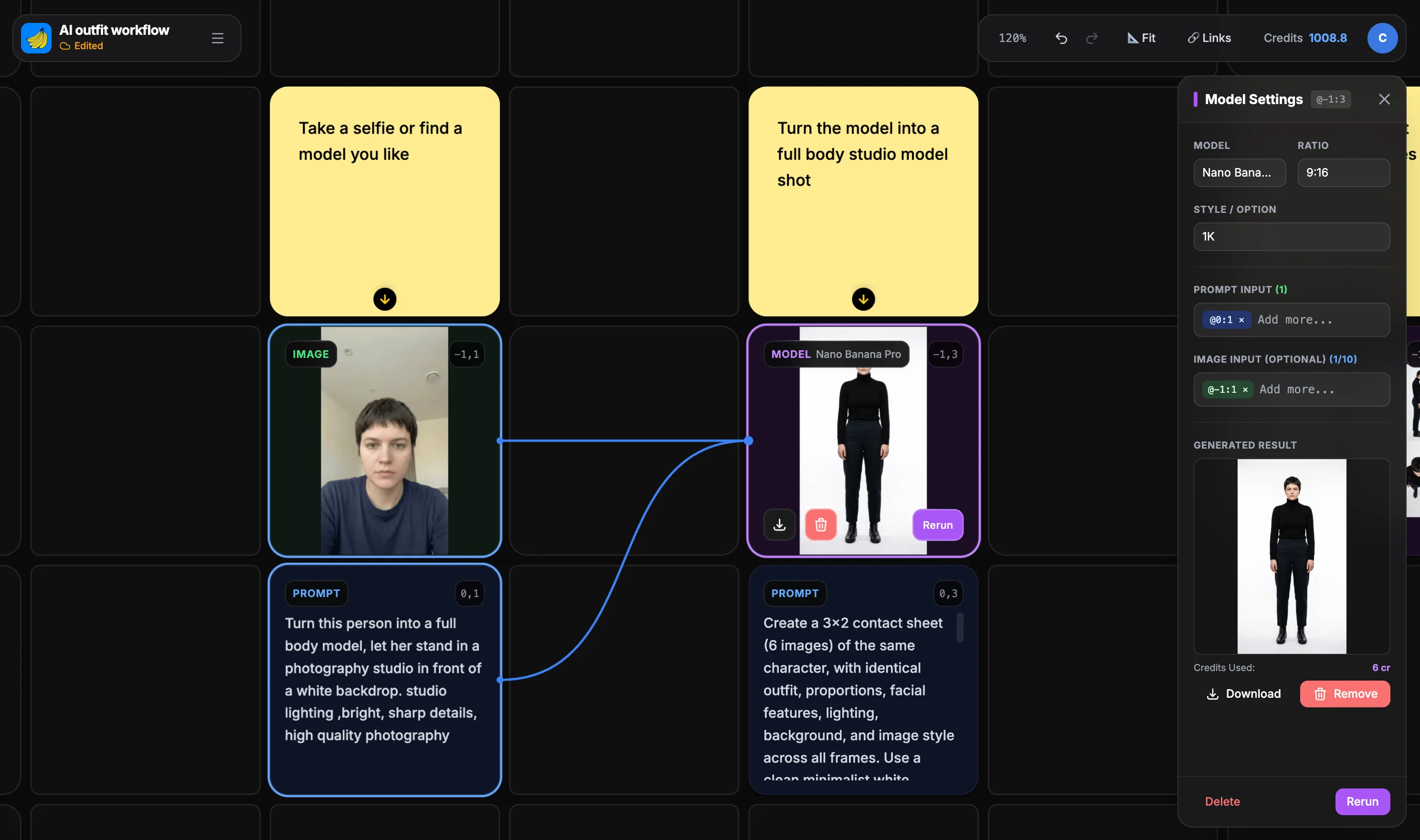
Step 2: The 6-Pose Grid Generation
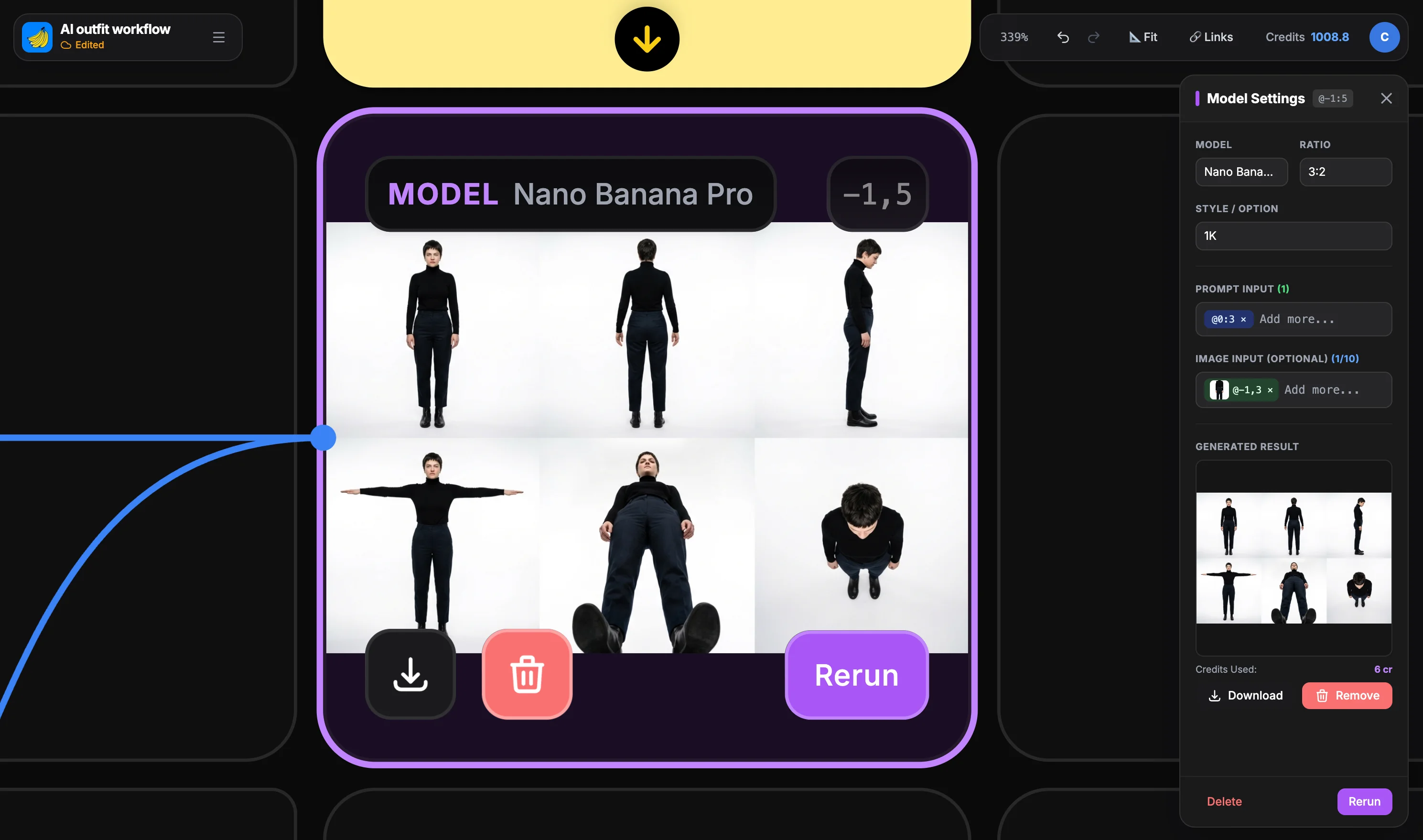
This is where Grid Canvas shines. We use a specially designed grid prompt to multiply our character into a coherent set of poses.
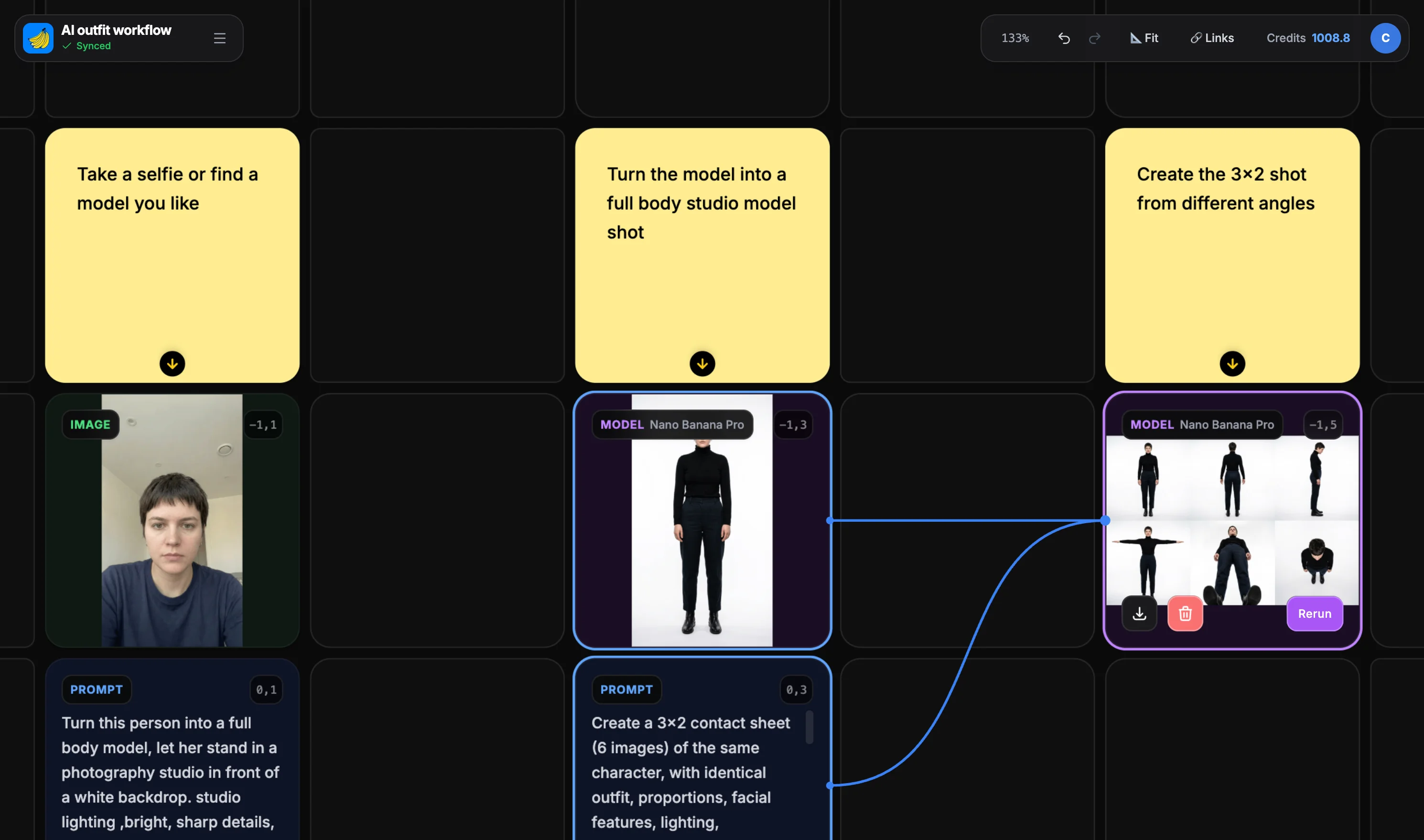
Goal: Turn the full-body shot into a 3x2 grid of the same character in six distinct poses.
The Technique: Using the Image-to-Image feature in Grid Canvas, we take our Step 1 result and apply a "contact sheet" or "grid view" prompt.
Prompt Strategy: "A contact sheet of 6 photos, arranged in a 3x2 grid, showing the same female model in different fashion poses, consistent character, white background..."
Step 3: Expand to High Resolution
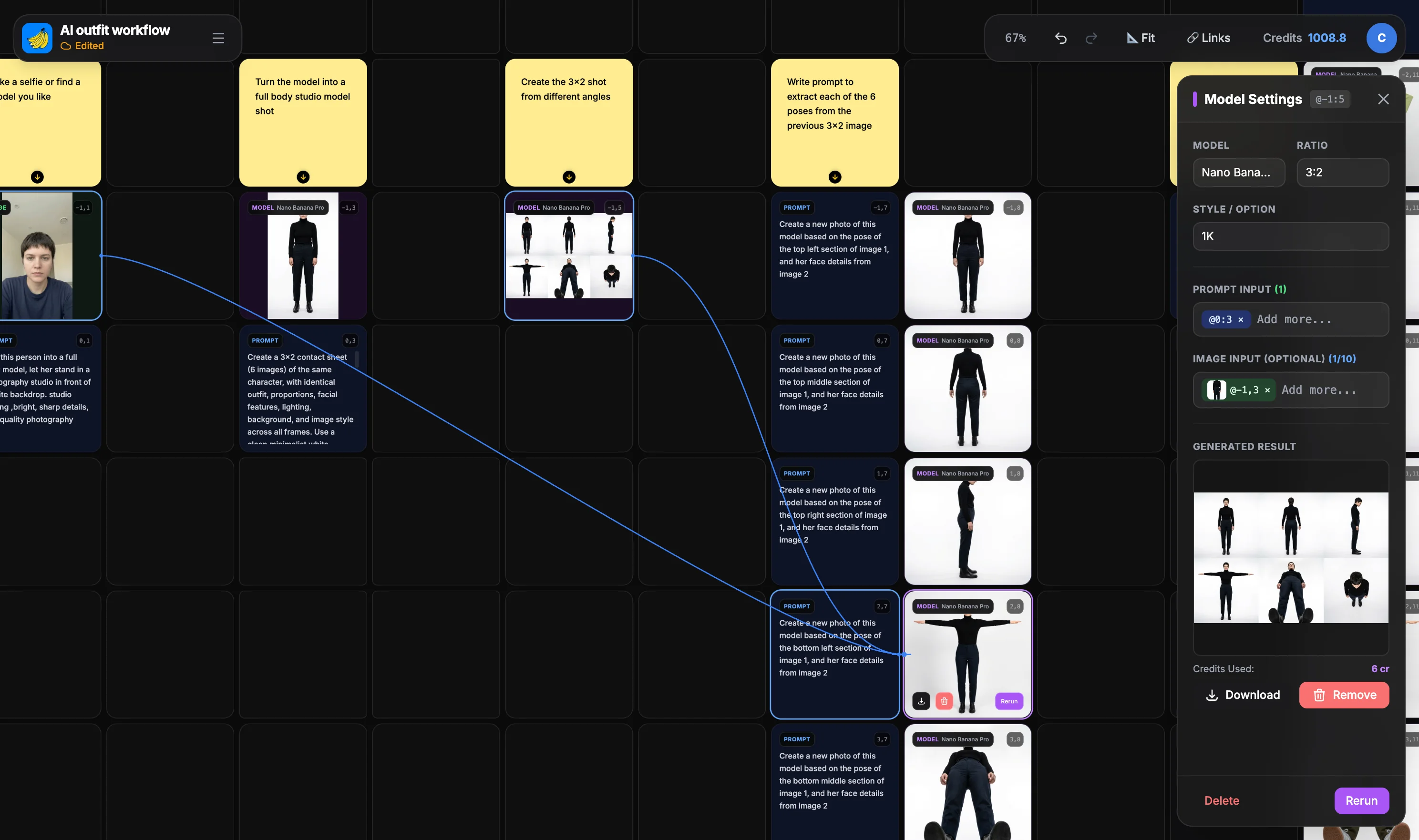
A grid is great for overview, but we need details. Grid Canvas allows you to "expand" or "upscale" specific regions of your canvas.
Goal: Separate the grid into 6 individual, high-resolution images.
How to do it:
- Create six prompt cells with the same prompt but pointing to different regions of the grid.
- Create a model cell pointing to the same reference images with different prompts we've created in step 1.
- Run each model cell's generation.
Now you have a library of 6 consistent poses for your model, ready to be dressed.
Step 4: One-Click Outfit Changes
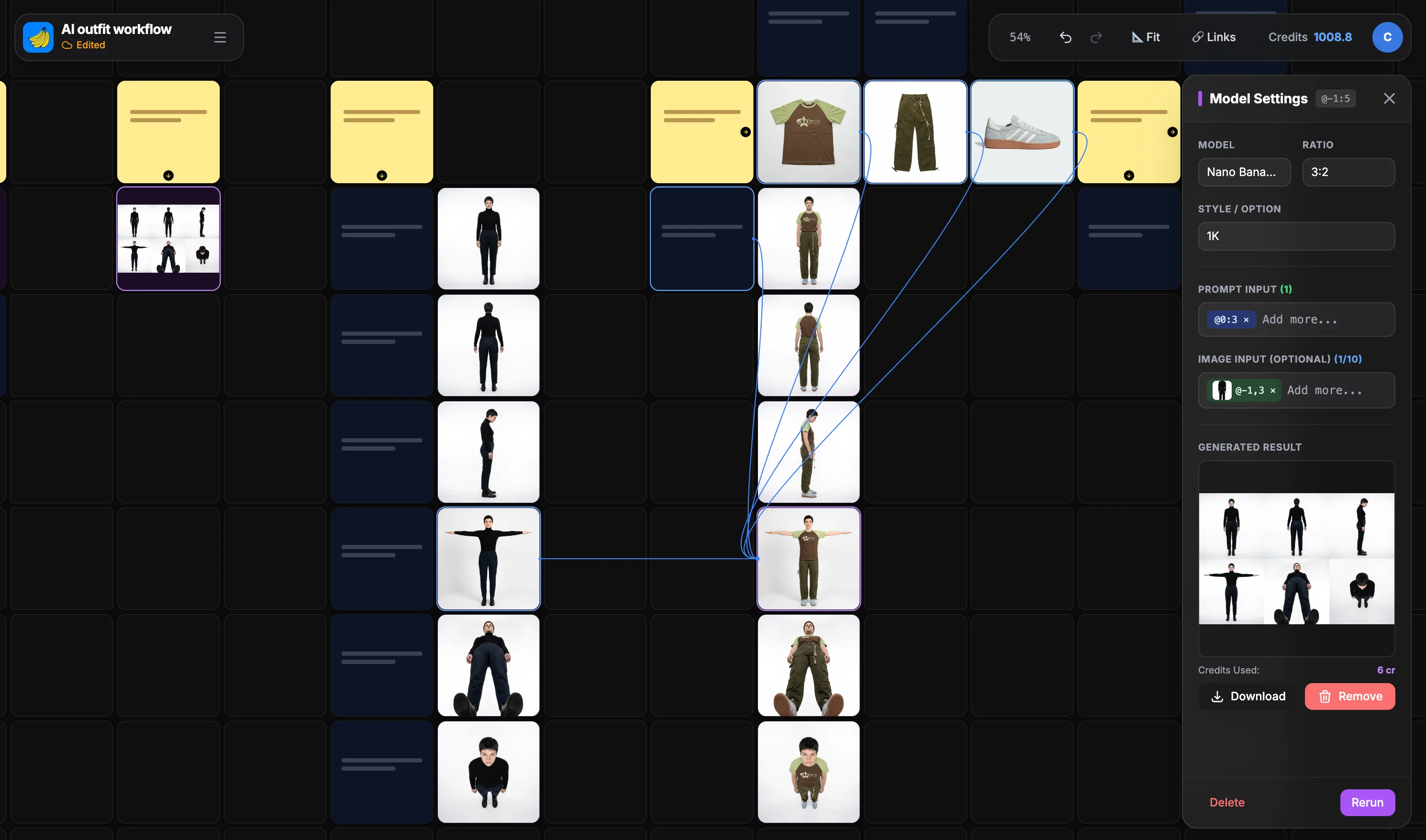
Here is the magic of the AI outfit generator capabilities. With your poses locked in, you can now swap outfits while keeping the pose and body consistent.
Goal: Generate images of the character wearing a specific outfit across all 6 poses simultaneously.
The Workflow:
- Prepare the outfit with one garment per image.
- Create one prompt cell to be reused in the next 6 generations.
- Create a model cell pointing to the same outfit reference images with the same prompts we've created in step 2, then add different pose images to each of the model cell.
- Run each model cell's generation.
Because you are processing them in batch on the canvas, you ensure the outfit style remains consistent across all angles.
Step 5: Rapid Iteration & Collection Building
Fashion moves fast. Once your workflow is set up, changing the look is as simple as changing a text prompt.
Goal: Create a new variation or an entirely new collection.
Iterate:
- Change the Outfit: Swap the trench coat for a "floral summer dress" across all 6 poses in seconds.
- Change the Vibe: Adjust lighting or background prompts for a new seasonal campaign.
- Refine Details: Zoom in and fix accessories, makeup, or hair details without losing the overall composition.
Why Use Grid Canvas for Fashion?
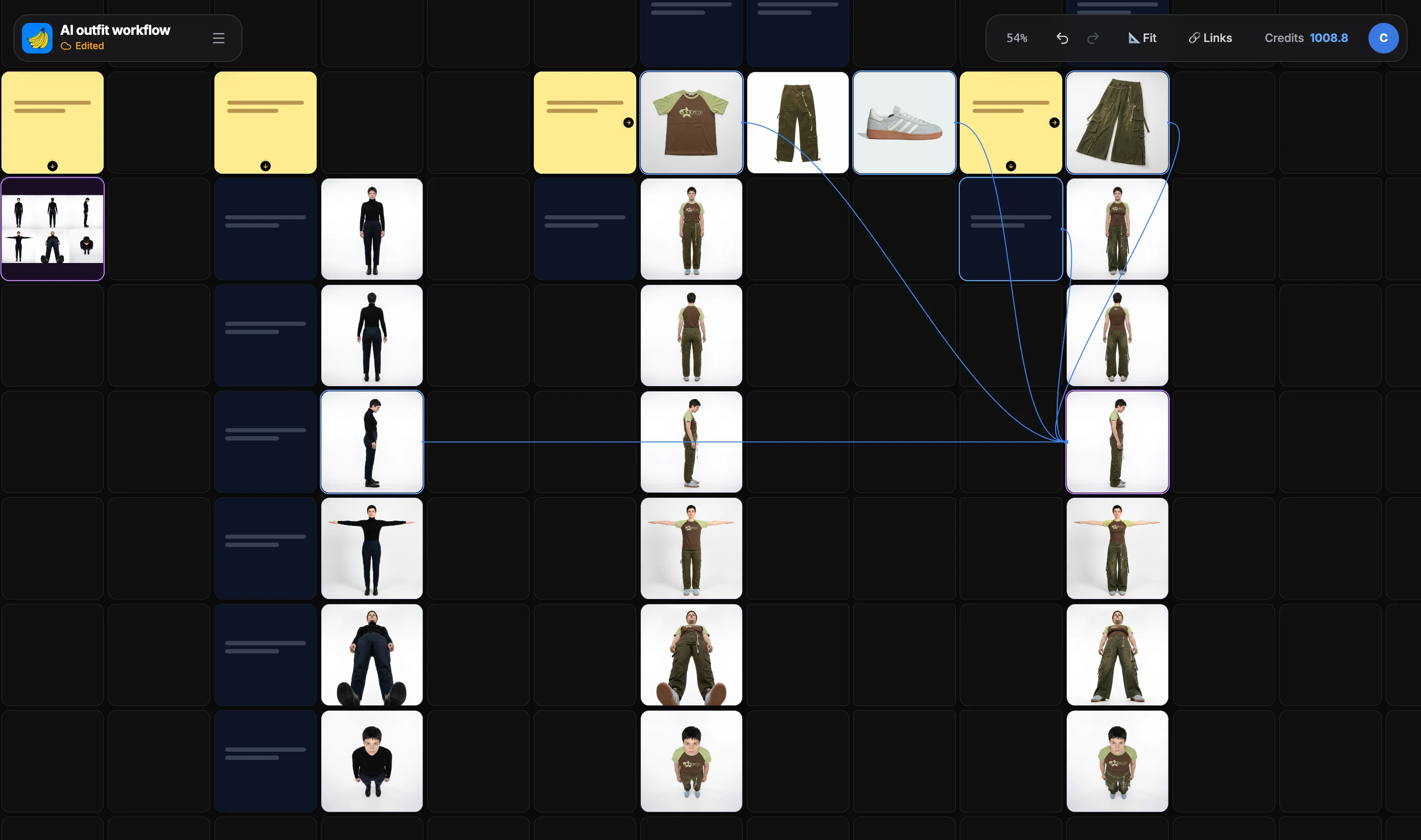
This workflow demonstrates why a grid-based canvas is superior to a linear chat interface for design work:
- Visual Context: See all your poses and variations side-by-side.
- Batch Processing: Apply changes to multiple images at once.
- Spatial Organization: Arrange your workflow logically (Reference -> Grid -> Poses -> Outfits).
- Consistency: The AI "sees" the context of your canvas, helping maintain character identity better than isolated generations.
Get Started
Ready to build your virtual fashion studio? Open Grid Canvas today and try the 3x2 Grid Workflow to elevate your AI clothing design process.
Grid Canvas Basics
If you are new to Grid Canvas, here is a quick primer on how the system works. Unlike a linear chat, the canvas uses a node-based workflow similar to professional design tools.
The Building Blocks: Cells
The canvas is built from Cells, which act as containers for different types of information:
- Prompt Cells: These store your text instructions (e.g., "A female model wearing a red dress"). You can link one prompt cell to multiple model cells to test variations.
- Model Cells: These are the engines that generate images. They take inputs (prompts, reference images) and produce visual outputs.
- Image Cells: These hold your generated images or uploaded references. You can link an image cell into a model cell to use it as an image-to-image reference.
Connections & Flow
The power of Grid Canvas lies in Connections. You don't just type and wait; you build a pipeline.
- Link Prompts: Connect a single "Master Prompt" cell to 6 different Model Cells to generate 6 variations instantly.
- Pass References: Output from one generation (like our 3x2 grid) becomes the input for the next step (cropping and upscaling).
- Batch Generation: You can run multiple model cells at once to generate multiple images at once.(You still need to click on generate button on each cell, but they can run in parallel)
This spatial organization allows you to see your entire creative logic at a glance, making complex workflows like the Fashion Grid possible. It also enables reuse of the workflow with different prompts and references.
What's great about Banana Designer's grid canvas is that it supports post-it notes on the canvas, and you can write down notes next to your workflow and use the canvas like a notebook to help you track your progress or configurations.
Related Resources
Expand your AI fashion capabilities with these guides:
- AI Fashion Design: From Sketch to Runway – Learn the basics of creating fashion concepts.
- Advanced Fashion Techniques – Dive deeper into virtual try-ons and model generation.
- Prompt Composer – Master the art of writing descriptive prompts for consistent results.
