AI Flat Lay Photography: 10 Product Variations from 1 Photo
Stop wasting hours trying to get clean flat-lay product photos for your clothing brand. Getting different angles and details with consistent lighting is a nightmare with traditional photography.
This guide reveals the Grid Canvas workflow that turns one simple product shot (or even a mockup) into 10 professional variations in under 10 minutes. No studio, no expensive lights, just consistent, high-quality results every time.
The Challenge: The Flat Lay Grind
For ecommerce brands, "one photo" is never enough. You need:
- Full views to show the silhouette
- Detail shots for fabric texture
- Angled views to show dimension
- Folded views for packaging context
Shooting these manually means constant adjusting, relighting, and editing to make them look consistent.
The Solution: A specialized Grid Canvas workflow that automates the angles while locking in your style.
The Workflow: 1 Input → 10 Outputs
We will walk through a streamlined 3-step process to generate a complete product gallery from a single source image.
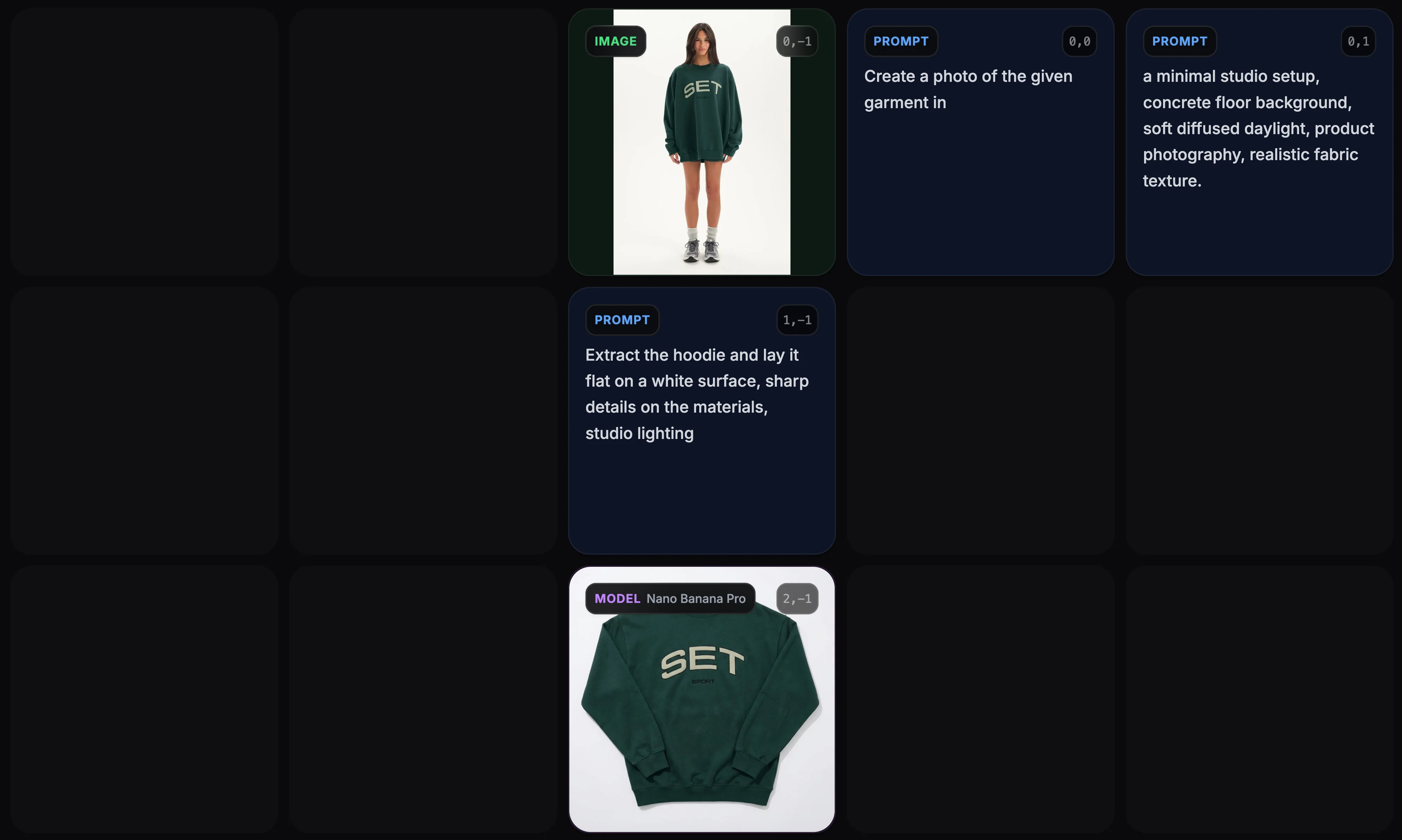
Step 1: The Input
Start with what you have. It doesn't need to be perfect.
- A simple photo of your garment against a wall
- A flat lay taken with your phone
- A digital mockup design
Goal: Establish the reference for the garment's color, pattern, and style.
How to do it:
- Open Grid Canvas.
- Upload your reference image into an Image Cell.
- Create a Prompt Cell describing the garment clearly (e.g., "A beige oversized hoodie, heavy cotton fabric, minimalist design"). Depending on the input image, write your prompt to extract or edit the design, and output an image of the garment with sharp details on a white background for future use.
Step 2: The Multi-Angle Grid Setup
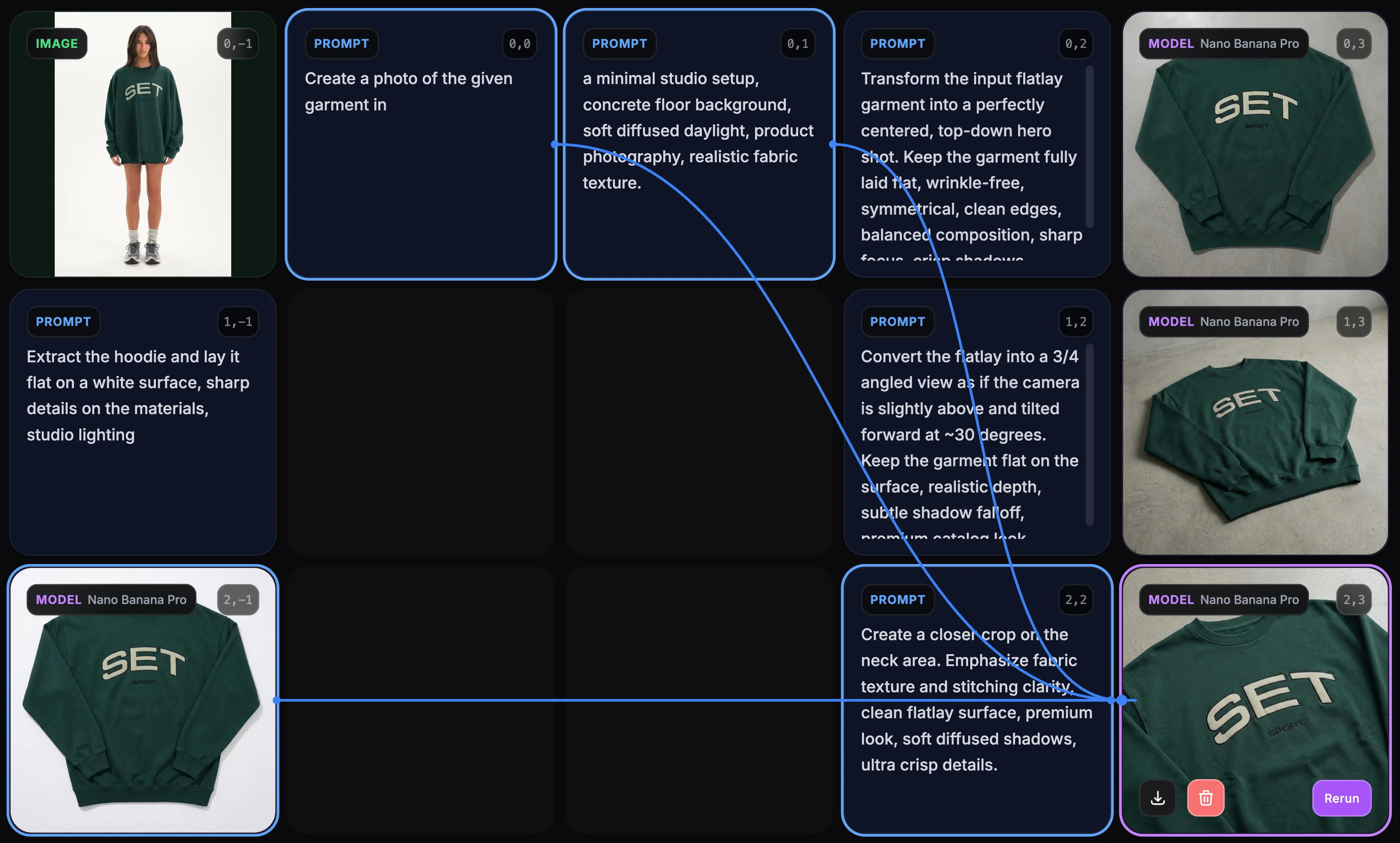
Instead of doing it one by one at a time, we use the canvas to define and manage our "shot list".
Goal: Generate 10 distinct views with reusable prompts.
The Technique: We create a few prompt cells to define the background(reused), and the different angles and details for each shot(one per generation). Then connect them in the correct order with our input image to the model cells. Do it ten times on the canvas.
Prompt Strategy: "Transform the input flatlay garment into a perfectly centered, top-down hero shot. Keep the garment fully laid flat, wrinkle-free, symmetrical, clean edges, balanced composition, sharp focus, crisp shadows, photorealistic."
Why this works: By spliting the background from the rest of the prompt, you can update the background and let it be applied to all generations in your future iteration without adjusting it for every shot.
Step 3: The Result – 10 Clean Images
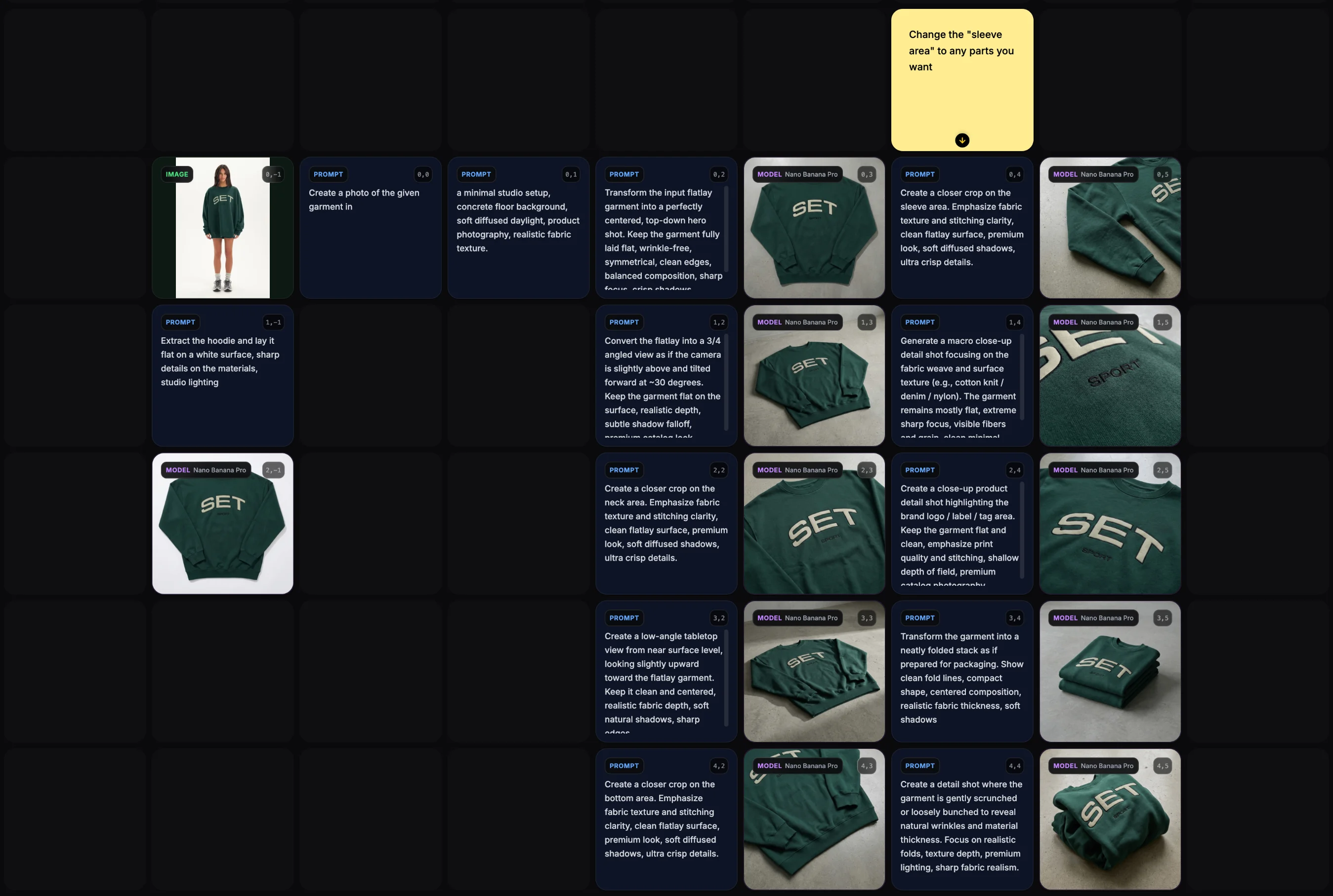
Click on the run button on each of the model cells, the system will generate the images for you.
What you get:
- Standard Flat Lay: The hero shot.
- Angled Views: Showing the fit and drape.
- Detail Shots: Close-ups of pockets, zippers, or fabric grain.
- Folded Shots: Perfect for "packaging" visuals.
Fast & Repeatable: Once this workflow is set up on your canvas, you can simply swap the input image (e.g., a blue version of the hoodie) and hit generate again. You get the exact same set of angles for your entire collection in minutes.
You can drag and select all the cells and copy them to a new canvas or below so that you get a fully reusable workflow for any other product.
Why Use Grid Canvas for Product Photography?
- Consistency: Same lighting and background across every shot.
- Speed: 10 images in 10 minutes vs. hours of shooting.
- Scalability: Reuse the same workflow for every product in your line.
- Control: Tweak one angle without ruining the others.
Get Started
Ready to automate your product photography? Open Grid Canvas today and try the Flat Lay Workflow to streamline your content creation.
Grid Canvas Basics
If you are new to Grid Canvas, here is a quick primer on how the system works. Unlike a linear chat, the canvas uses a node-based workflow similar to professional design tools.
The Building Blocks: Cells
The canvas is built from Cells, which act as containers for different types of information:
- Prompt Cells: These store your text instructions (e.g., "A beige hoodie flat lay"). You can link one prompt cell to multiple model cells to test variations.
- Model Cells: These are the engines that generate images. They take inputs (prompts, reference images) and produce visual outputs.
- Image Cells: These hold your generated images or uploaded references. You can link an image cell into a model cell to use it as an image-to-image reference.
Connections & Flow
The power of Grid Canvas lies in Connections. You don't just type and wait; you build a pipeline.
- Link Prompts: Connect a single "Master Prompt" cell to multiple Model Cells to generate variations instantly.
- Pass References: Output from one generation becomes the input for the next step.
- Batch Generation: You can run multiple model cells at once to generate multiple images at once.(You still need to click on generate button on each cell, but they can run in parallel)
This spatial organization allows you to see your entire creative logic at a glance, making complex workflows like the Flat Lay Generator possible. It also enables reuse of the workflow with different prompts and references.
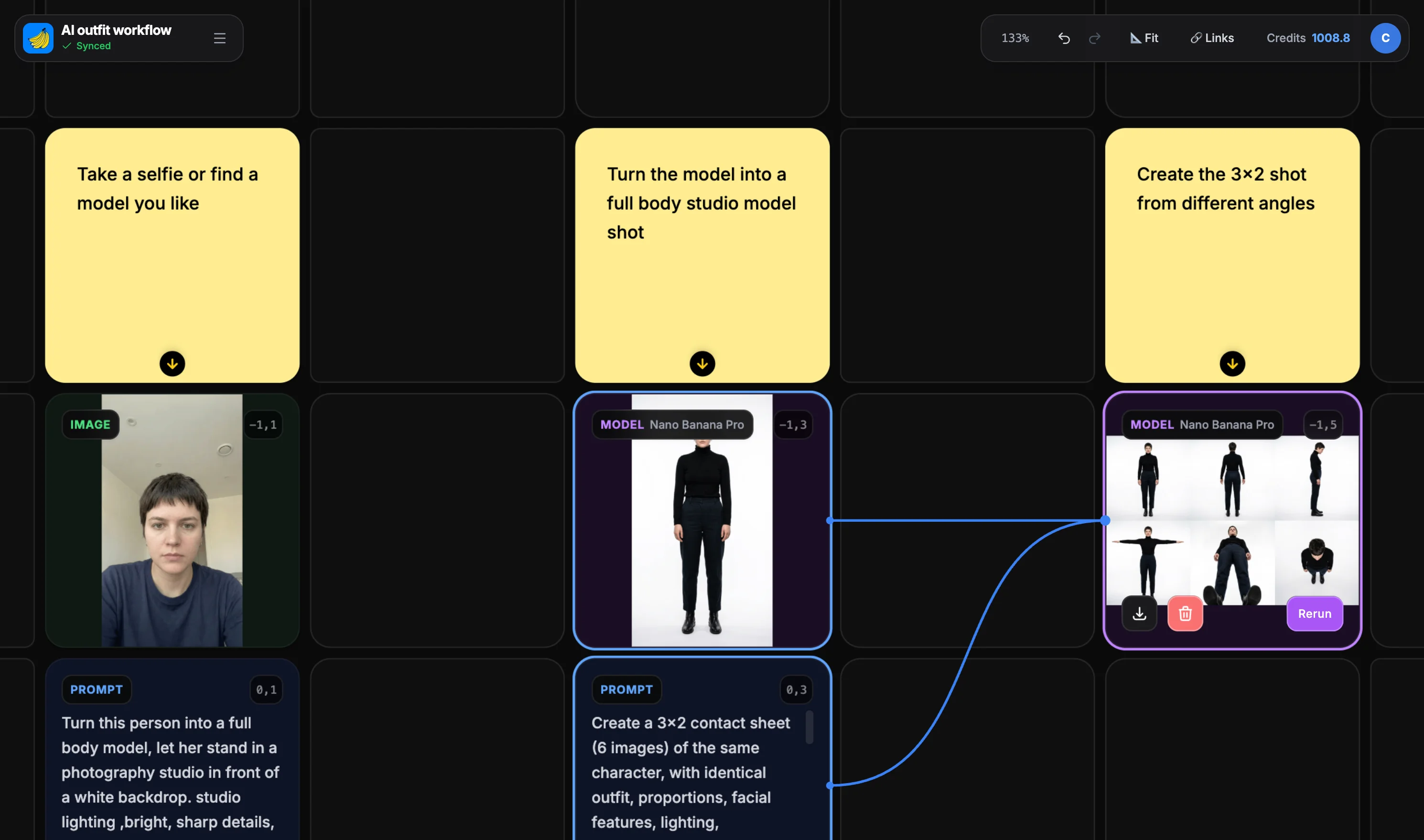
What's great about Banana Designer's grid canvas is that it supports post-it notes on the canvas, and you can write down notes next to your workflow and use the canvas like a notebook to help you track your progress or configurations.
Related Resources
Expand your AI ecommerce capabilities with these guides:
- AI Product Photography: Scene Placement – Learn how to place your flat lays into realistic lifestyle scenes.
- AI Fashion Workflow – Master consistent character generation for on-model shots.
- Precision Editing – Perfect your product images with advanced inpainting.
